Windows 10X? The Future of Microsoft... (analysis)
Hello!
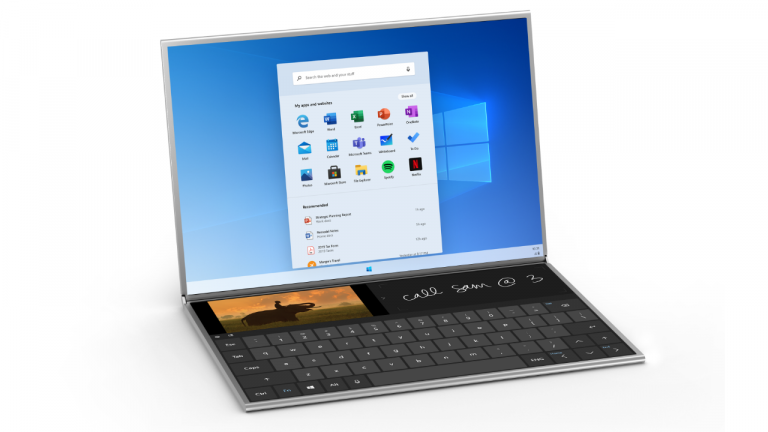
Have you heard of Windows 10X? No? Well, this is Microsoft’s new system software specifically designed for new mobile devices equipped with two touch screens. This is the case of the new Surface Neo in the case of Microsoft, but there will be, for sure, more similar devices manufactured by third-party companies.
Overview
This new OS removes all legacy components from previous editions of Windows in exchange for new core technologies that will fill those gaps. The operating system will be faster, more consistent (in terms of design) and much more secure. In spite of everything, it will still be possible to run Win32 applications through a containerized mode, which, in general, will be an extremely stripped-down installation of Windows 10. This mode will only be mobilized when a legacy application is run, and this will benefit the system performance and battery life. Remember that this is the main purpose of this system software. Regarding its launch, no specific dates, just mentioned that it will be available at the end of this year only for OEMs (Original Equipment Manufacturers) (in more detail later).
App support

Unlike the previously mentioned Win32 executables, the web and UWP (Universal Windows Platform) applications will run natively on Windows 10X. Microsoft has been working hard to eliminate the visible differences in performance between web / UWP applications and legacies. Even so, there may be a slight delay when running a legacy app, if none is in progress. Due to the way the container mode works, Win32 applications are placed in a kind of “sandbox”, and therefore do not affect the system globally. This means that programs that have to modify system files or that have to partition hard drives will not be allowed on Windows 10X.
Interface (shell)
Windows 10X presents a new interface built with new technologies. It is an adaptable shell that adjusts according to the equipment’s posture. For example, in the new dual screen devices, the user may want to use it as a laptop, a tablet, etc. For this to be possible, the interface will have to adapt to provide the best experience whatever the way the device is utilized. Consequently, this means that the legacy elements of the interface are absent, thus allowing greater consistency in the design of the new operating system.
Taskbar and desktop
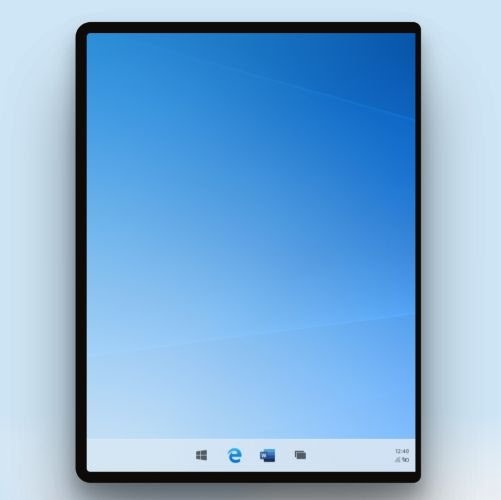
Windows 10X features a new adaptive taskbar that can change depending on the device’s orientation or the user’s preferences. In the marketing material, items such as the Start button and pinned and/or running apps are centred on the taskbar. Apparently, this will be customisable, and users will be able to choose to have these icons aligned to the left if they wish, making it more similar to Windows 10.
There is a new touch-centred experience on the taskbar that hides whilst a programme is running and can be accessed to find other items, such as the Start menu or the Action Centre. When you connect a keyboard and mouse or enable Composition Mode (discussed in detail in point 4), the Taskbar adapts to behave more like a traditional taskbar, meaning it will not hide when an application is running.
As for the desktop, it will not be possible to place shortcuts on the desktop itself (I assume that the shortcuts found in classic Windows rely on technologies outside the scope of this OS), nor will there be many options in the context menu. In short, a more ‘sparse’ desktop environment.
Start Menu
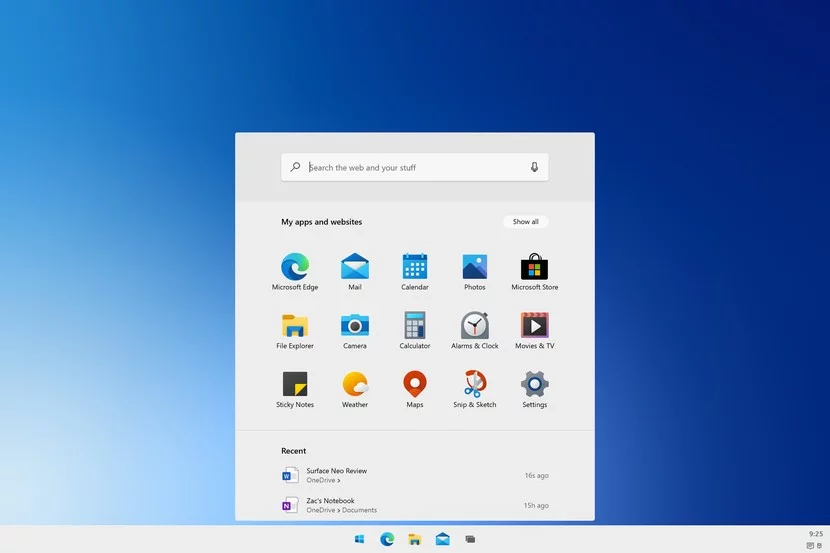
In this new version of Windows, Microsoft has completely redesigned the Start Menu, with a focus on productivity. This menu features a search bar at the top that can search both the system and the World Wide Web, as well as a list of installed apps in place of the live tiles found in standard Windows 10. Furthermore, it also features a ‘Recent’ section that is dynamically updated with items the user may wish to access directly and/or has accessed recently, such as Office documents or recently visited websites.
The list of apps can be customised, and you can reorder which apps appear at the top. Windows 10X will also support folders in the Start Menu, allowing users to group multiple apps into a folder, just like the Start Menu in Windows 10.
Action Centre
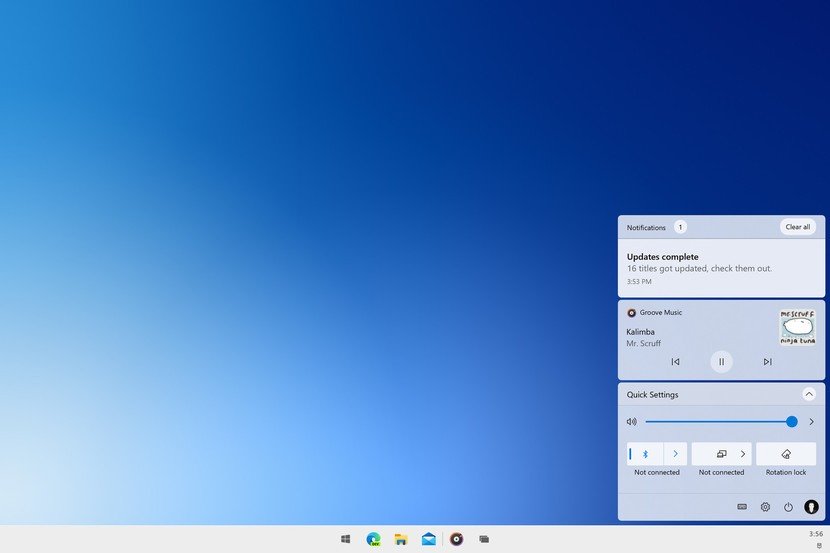
This new Action Centre is a significant improvement on its counterpart in standard Windows 10. Starting with the look, we can see that it is divided into several ‘panels’ and clearly reflects the new aesthetic that Microsoft is implementing in this operating system. In the image above, these include the Notifications panel at the top, Groove Music, followed by Quick Settings (previously known as Quick Actions in Windows 10).
To begin with, let’s take a closer look at the Quick Settings panel. It appears that certain settings (Wi-Fi, Accessibility and Bluetooth in particular) can now be configured directly from the Action Centre, without being redirected to another menu outside the centre itself or even to Windows Settings. Compared to Windows 10, this was not possible at all. Quick Actions previously functioned solely as a toggle option, with no way to configure them directly from within the Action Centre itself. In my view, this alone would make the Action Centre far more useful than its Windows 10 counterpart. But there’s more…
Apart from that, there’s a new music panel that appears when an app plays audio. There’s nothing particularly special to mention here, as it does exactly what everyone knows it does (back, play/pause and forward buttons), so I won’t dwell on this aspect.
In addition, there is also the Notifications panel. It is identical to Windows 10: it houses all the notifications that have appeared and groups them by the different apps that triggered them. Nothing new.
Finally, there are a few settings that have been removed from the Start Menu and have now moved to the Action Centre. They are located below the Quick Settings panel and are as follows: (from left to right in the image) Power Options, Windows Settings (shortcut), Power, and the user’s profile picture. Clicking on the user’s profile picture will give you options to lock and log off the device.
OOBE (out-of-box experience)
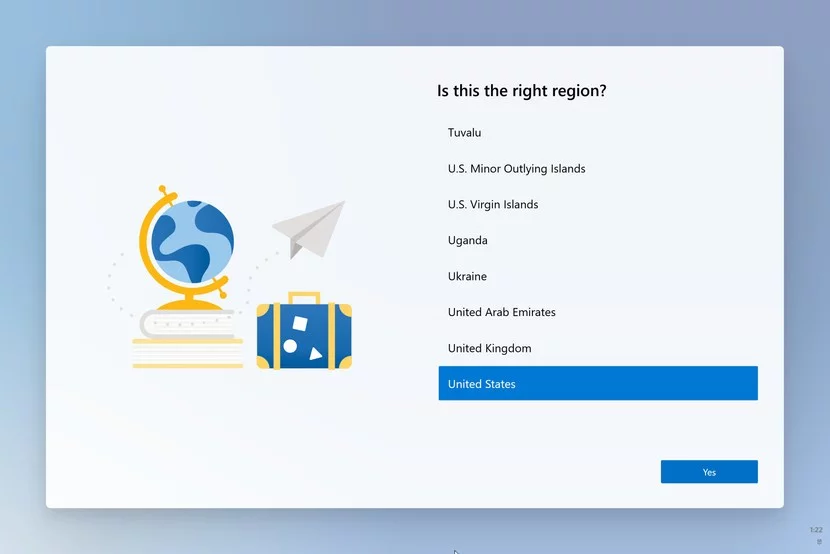
As every part of Windows 10X has been redesigned, the OOBE is no exception. It still guides you through the Windows installation process, language selection, signing in with a Microsoft Account, etc. But it seems that Cortana is no longer present throughout the entire setup process. It is a more traditional setup experience, which has been modernised in Windows 10X.
Compose Mode
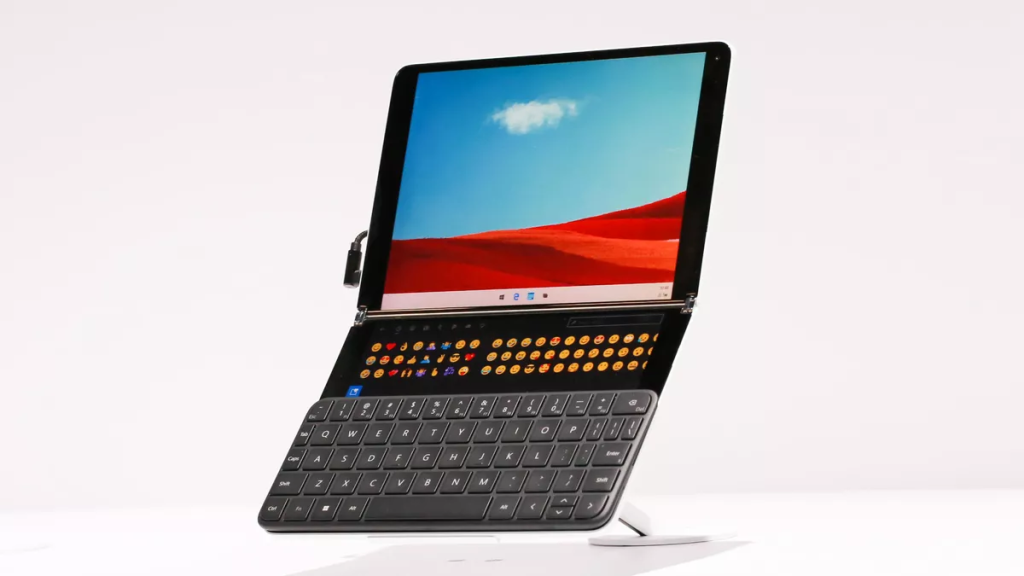
Compose Mode is a new button on the Quick Options panel in the Action Center that changes the user experience to something more focused on productivity. Compose Mode starts automatically on devices, like the, already mentioned, Surface Neo, when you place the movable keyboard over one of the screens. It’s essentially the alternation between touch-centered input and keyboard / mouse-centered input.
On devices without a dedicated keyboard or trackpad, Composition Mode will use screen space for a virtual keyboard and trackpad, which have been enhanced to support emojis, GIFs, and ink (the so-called Wonder Bar). Additionally, this mode will switch the Taskbar from its hidden state to a traditional Taskbar.
By default, apps in Windows 10X run in full-screen mode and cannot be manipulated like traditional windows. However, on devices with larger screens, enabling Composition Mode should allow programs to run in free-form windows, just like on a standard laptop.
Windows Update
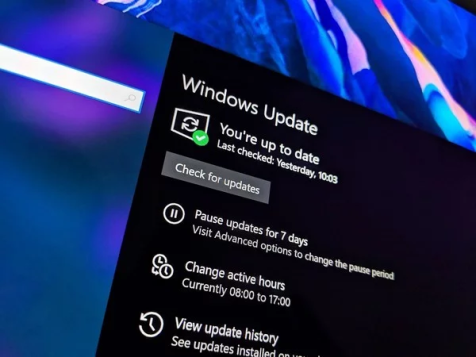
Microsoft is also updating Windows Update, making it more agile and faster. Feature Updates will not take as long as in Windows 10, as they will install in the background, thus not requiring a complete restart. Therefore, restarting, according to Microsoft, will take less than 90 seconds, making this process much more convenient and faster. It is a real advance on the Windows 10 procedure, since the reboots of the same can take between 5 to a long 20 minutes, depending on the equipment.
Availablility
In this respect, Windows 10X will only be available on devices that come with the pre-installed system software, namely the aforementioned dual-screen devices. That is, to use this operating system, you’ll have to purchase a new PC with Windows 10X in secondary memory. The same operating system cannot be purchased “loose” and installed on existing hardware, nor will it be available as an update for existing Windows 10 users. However, as the OS is able to work on other form factors (2-in-1’s, laptops, etc.), it will be a matter of time before OEMs launch Windows 10X on more conventional Personal Computers.
I hope you enjoyed this somewhat detailed review of this operating system. Just a reminder that this OS is still in development, so some things may change.
Take care, and see you next time! :)